


Step
|
Action
|
Comment
|
1
|
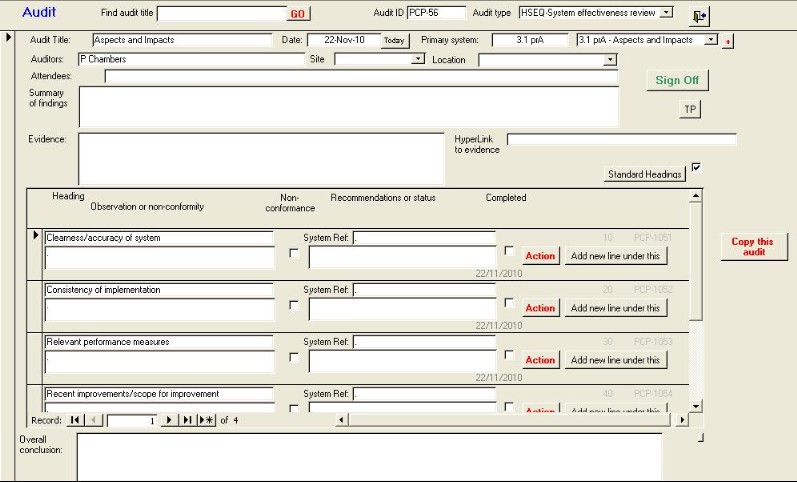
Select enter new audit from the audit tab page. |
The form shown below
appears.
|
2
|
Select the audit
type
|
|
3
|
Select the system
|
|
4
|
Click on the |
Next to the system drop-down box. The audit title and
system are pasted.
|
5
|
Click on the |
The headings "Clearness/accuracy of system", etc.,
are pasted.
|
6
|
Enter
data
|
|
7
|
Enter an action against an issue if you believe
it necessary
|
Use the |
8
|
If there is a non-conformance with the system,
click the non-conformance box.
|
|
9
|
If you need to add a new line, click on
the |
|
10
|
Click on the Completed box for each
issue
|
If there is an open action against this issue, you won't be able to sign it off until the action is completed. |
11
|
Enter a summary of
findings
|
|
If you click on
the  button, all the completed boxes
are ticked and step 10 is not necessary. button, all the completed boxes
are ticked and step 10 is not necessary. |
The open action limitations still apply. Also, the schedule will be updated with this audit shown as completed and a new audit scheduled 12 month hence. Note that 12 months is the default setting and can be reset. |

 button
 button
 button
 button.